 JSKAPPS
Snippets that fill themselves in: templates in your clipboard manager
Subhankar Jana · September 19, 2026
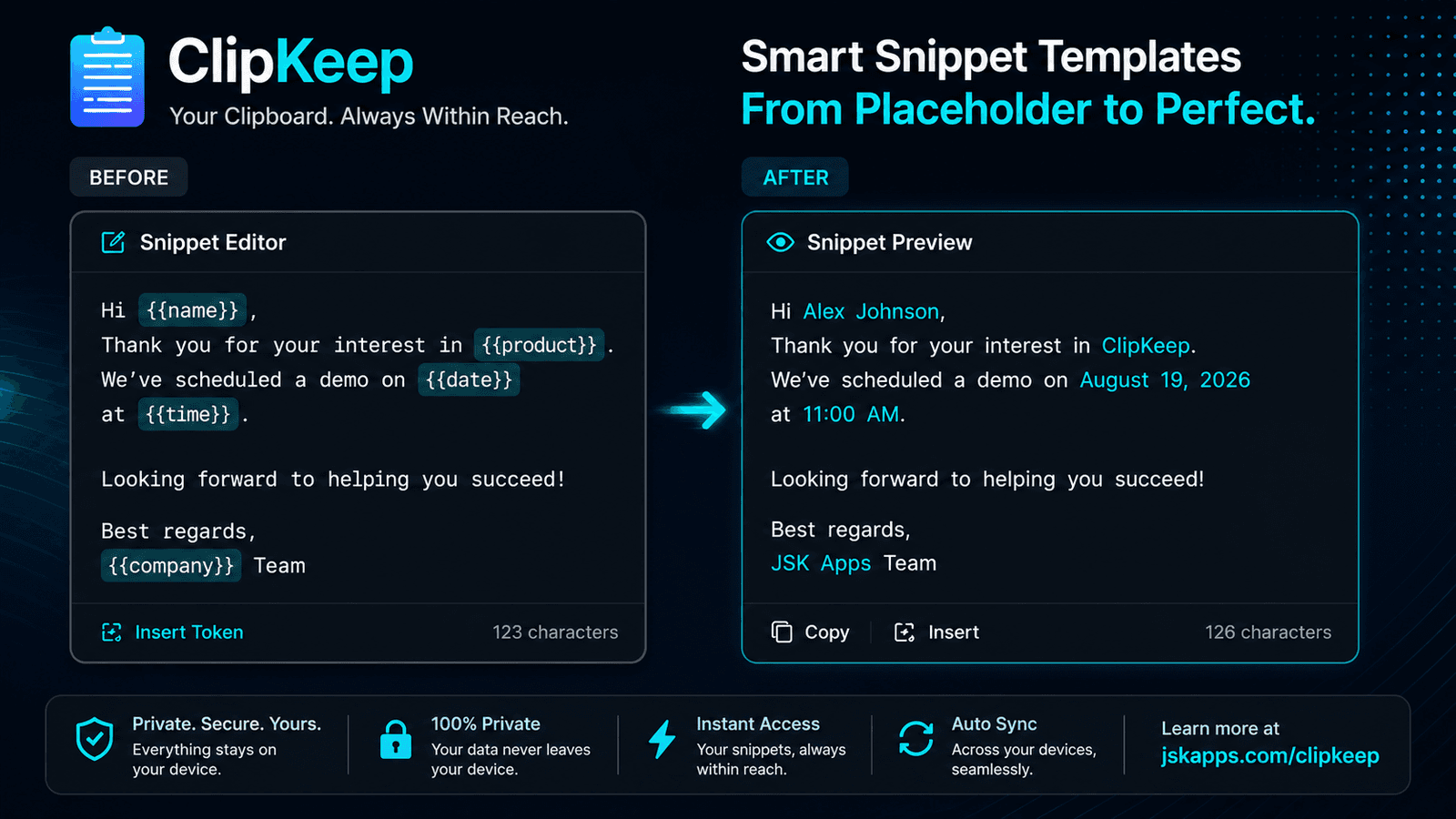
Most people try saved snippets once, use them for a week, and quietly stop.
The reason is always the same. You save a canned reply:
Hi there,

Thanks for getting in touch about order . I have looked into this and
will come back to you by .

Best,
Then every single time you paste it you have to click into two gaps and type the order number and a date. That is not a saved snippet, that is a form you fill in by hand, and typing the whole thing was nearly as fast.
Fifteen of the fifty clipboard extensions we reviewed offer snippets. All fifteen are static find-and-replace. The gap between "text I saved" and "text I can actually use" is the ability to compute, and it is worth understanding what that requires.
The four things a template needs to do
Insert something that changes
The date, the time, or whatever is on your clipboard right now. This one line removes most of the manual editing from most templates:
Thanks — I will come back to you by {{date:dddd D MMMM}}.
expands to Thanks — I will come back to you by Friday 14 August.
The format is yours: {{date:YYYY-MM-DD}} for an ISO date in a commit message, {{time:HH:mm}} for a timestamp in a log, {{date:MMMM YYYY}} for a report header.
{{clipboard}} inserts whatever you copied most recently, which is how you build a wrapper — copy an error message, expand a template, and get a formatted bug report with the error already inside it.
Ask you for the bits it cannot know
Some values cannot be computed. A name, an order number, a ticket ID. The template should ask:
Hi {{field:First name}},

Thanks for getting in touch about order {{field:Order number}}. I have looked
into this and will come back to you by {{date:dddd D MMMM}}.
Use it and you get one small prompt with two boxes, filled in before anything expands. Each distinct question is asked once no matter how many times it appears, so a name used four times is one box, not four.
Give a field a default with a pipe: {{field:First name|there}} produces "Hi there," if you leave it blank — which matters when you are moving fast.
Put the cursor where you want it
{{cursor}} marks where the caret lands after the paste. It emits nothing itself:
Dear {{cursor}},

Regards,
Ana
Paste that and you are already typing the name, with the sign-off written.
Compose out of other snippets
The one that changes how you write them. {{snippet:name}} pulls in another snippet:
{{snippet:greeting}}

The deploy finished at {{time:HH:mm}} and all checks passed.

{{snippet:signature}}
Change your signature once and every template using it updates. Nested snippets can prompt for their own fields, and those questions are folded into the same single prompt — you are never asked twice.
A snippet that refers to itself is refused rather than expanding forever, and the loop is shown to you at the exact point it happens, so you can see what you wrote.
What this looks like in practice
Three templates that earn their place, for three different jobs.
A support reply that needs no editing
Hi {{field:Name|there}},

Thanks for reporting this. I have reproduced it and raised {{field:Ticket}}
on {{date:D MMMM}}. I will update you by {{date:dddd}}.

{{snippet:signature}}
A commit or changelog line
{{date:YYYY-MM-DD}} — {{field:Change}} ({{field:Ticket}})
A bug report wrapped around whatever you just copied
### {{field:Summary}}

Seen at {{date:YYYY-MM-DD}} {{time:HH:mm}}.
{{clipboard}}
Steps: {{cursor}}
Copy the stack trace, expand this, and you have a formatted report with the trace embedded and your cursor in the steps field.
Which tier each part needs
Being clear about this up front, because discovering a paywall mid-tutorial is infuriating.
| Capability | Tier |
|---|---|
| Saving a named snippet with literal text | Free — needs a JSKAPPS account |
{{date}} {{time}} {{clipboard}} {{cursor}} |
Pro |
{{field:…}} fill-in prompts |
Pro |
{{snippet:…}} nesting |
Pro |
If you write a template while on the free tier, it saves fine and pastes exactly as written — the literal text, not an error and not an empty paste. You wrote it; you get it. A note appears beside the paste explaining what Pro would have done.
That behaviour is deliberate. A feature that silently produces nothing is worse than one that politely produces the wrong thing.
Two design decisions worth knowing
Unknown tokens are left alone. Write {{dat}} by mistake and you get {{dat}} in the output rather than an empty gap. Templates get expanded while half-written, and text silently vanishing is far worse than a visible typo.
The caret position is measured against the expanded text. If a {{clipboard}} before your {{cursor}} inserts twelve characters, the caret lands twelve characters later. Obvious once stated, easy to get wrong, and the reason {{cursor}} is usable at all.
Getting started
Open the Snippets tab, give one a name and a body, and press Add snippet. Optionally add a shortcut like addr so you can find it instantly by typing.
Start with one template you actually paste several times a week — a signature, a standard reply, a commit format. Add {{date}} first, then a {{field:…}} where you find yourself editing every time. The test of a good template is that you stop editing after pasting.
New to this? How to see your clipboard history in Chrome covers the basics. If you work with credentials, your clipboard history is a plaintext log of them is worth five minutes.
The full token reference lives in the ClipKeep documentation, and ClipKeep is free to install without an account.
About this tool
JSK ClipKeep