 JSKAPPS
Step-by-step guide
How to see your clipboard history in Chrome
Subhankar Jana · September 1, 2026
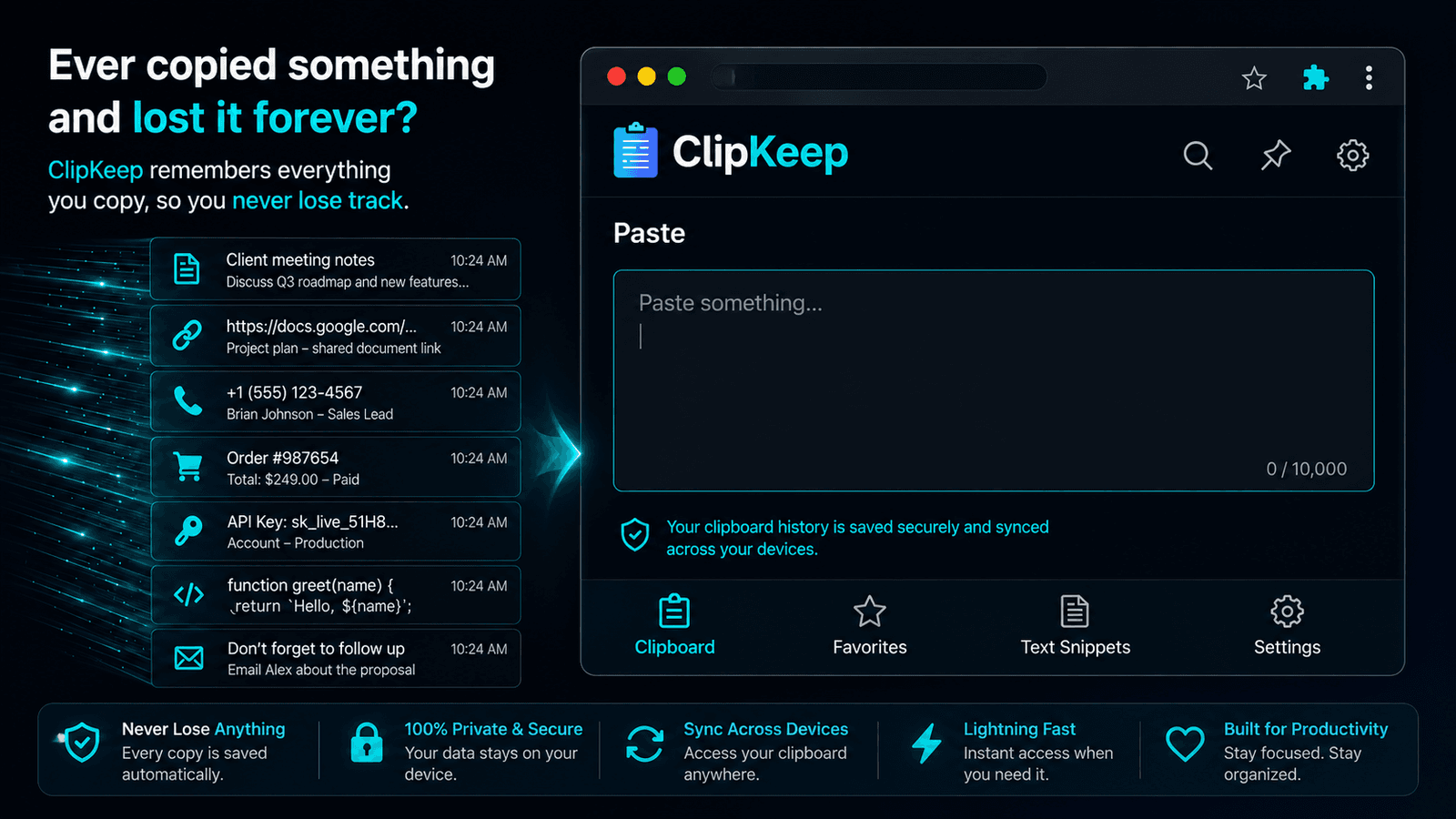
You copied a tracking number. Then you copied a URL to check something. Now you need the tracking number back, and it is gone — because Ctrl+V only ever holds the last thing.
This happens dozens of times a day and the reason is simple: Chrome has no clipboard history. There is nothing to open, no panel, no shortcut. The clipboard is a single slot, and every copy overwrites it.
What follows is what actually exists on each operating system, why none of it solves the problem inside the browser, and what to do about it.
Check whether your operating system has one first
Before installing anything, it is worth knowing what you already have — because on one platform it is genuinely enough.
Windows 10 and 11
Windows has a real clipboard history, and most people have never turned it on.
- Press Windows key + V.
- If it is off, Windows offers a Turn on button. Click it.
- From then on, Windows key + V opens a panel of your recent copies.
It holds around 25 items, clears when you restart unless you pin things, and covers everything on the machine — not just the browser.
macOS
macOS has no clipboard history. The Finder's Edit menu has a "Show Clipboard" item, but it shows only the current single item, which is not history in any useful sense.
ChromeOS
Press Launcher + V. ChromeOS keeps the last five items. Five is enough to be tantalising and not enough to be reliable.
Why the OS clipboard is not the answer in a browser
Suppose you are on Windows and you have turned on Windows key + V. You still hit three problems the moment your work is browser-shaped.
It has no idea where anything came from. Twenty copies in, you are staring at four similar-looking IDs with no way to tell which came from the invoice and which from the support ticket. A browser extension knows the site each copy came from and can search it.
It cannot search. Windows shows a scrolling list. If the thing you want was forty copies ago, you scroll.
It keeps your passwords. This is the one that matters. The OS clipboard history is an undifferentiated log: a password you pasted from your password manager into a terminal sits in it exactly like a shopping link, in plain text, until it is pushed out. Windows makes no attempt to notice the difference.
That last point is not hypothetical. If you work with API keys, database URLs or credentials at all, your clipboard history is one of the most sensitive files on your machine, and nothing on any of the three platforms treats it that way.
Getting real clipboard history inside Chrome
A browser extension can do what the OS cannot, because it sees the context of the copy: the page, the field, and whether the field was a password box.
ClipKeep is the one we build. Install it, and there is nothing to set up — no account, no configuration, no network access at all.
Step 1 — Install and open the panel
Add it from the Chrome Web Store and click its icon in the toolbar. If you cannot see the icon, click the puzzle-piece icon and pin it.
The first screen explains the permission warnings Chrome showed you at install and offers a working example clip. Click Open workspace ↗ for the full panel, which opens down the right-hand side of the browser and stays there while you work.
Step 2 — Copy as you normally would
Select some text on any page and press Ctrl+C.
It appears at the top of the panel within about a second, with the site it came from and a relative timestamp. You do not have to do anything to "save" a copy — that is the whole point.
Step 3 — Get anything back
Two ways, and the second is the one people end up using constantly:
- Click a clip to copy it back to your clipboard, then paste as normal.
- Shift-click a clip to paste it directly into whatever field you were last using, without a round trip.
Shift-click also works in React and Vue applications, which normally ignore a value written into a field by anything other than a keystroke.
Step 4 — Search instead of scrolling
Type in the search box. It matches the clip text, any tags you have added, and the site the clip came from — even though the site name is not part of the visible text.
That last part is what makes a large history usable. "Show me the thing I copied from the shipping site" is a question you can actually ask.
Step 5 — Tell it what to ignore
This is the step most people skip and should not.
Open Settings and find Never captured. ClipKeep ships with 36 sites already excluded — password managers, identity providers, cloud consoles and banks — so it is doing something useful before you touch it. Add your own with Add the site you are on, and nothing you copy there is ever stored.
Separately, and without any configuration: if a copy comes from a password field, or looks like a known secret format — an AWS key, a Stripe key, a GitHub token, a card number — it is either refused outright or stored masked and deleted automatically a few minutes later.
| What you copy | What Windows key + V does | What ClipKeep does |
|---|---|---|
| An ordinary link | Keeps it, plain text | Keeps it, encrypted, with the source site |
| A password from a password field | Keeps it, plain text | Stores nothing at all |
| An AWS access key | Keeps it, plain text | Stores it masked, deletes it in minutes |
| Anything on your bank's site | Keeps it, plain text | Stores nothing, and says so on screen |
What it costs
The complete clipboard manager is free and needs no account: unlimited history, search, pinning, paste-into-field, encryption, secret detection, the never-capture list, a PIN lock and JSON export.
A free JSKAPPS account adds tags, saved snippets and CSV export. ClipKeep Pro adds automation — templates, transforms, folders and per-site rules. Nothing in this article needs a paid plan.
The honest limitations
- Firefox does not capture copies made outside the browser. Only copies made on web pages. Chrome and Edge capture both.
- There is no sync between devices. Nothing leaves your machine, which is the trade.
- Right-click "Copy image" does not fire a page copy event in Chrome, so image copies are picked up by the clipboard reader and can take a second or two.
Where to go next
If you handle credentials regularly, why your clipboard history is a security problem goes into what a plain-text clipboard log actually exposes.
The full reference, including how to set keyboard shortcuts, is in the ClipKeep documentation.
About this tool
JSK ClipKeep