 JSKAPPS
Step-by-step guide
How to download all the images from a web page at once (Chrome)
Subhankar Jana · August 11, 2026
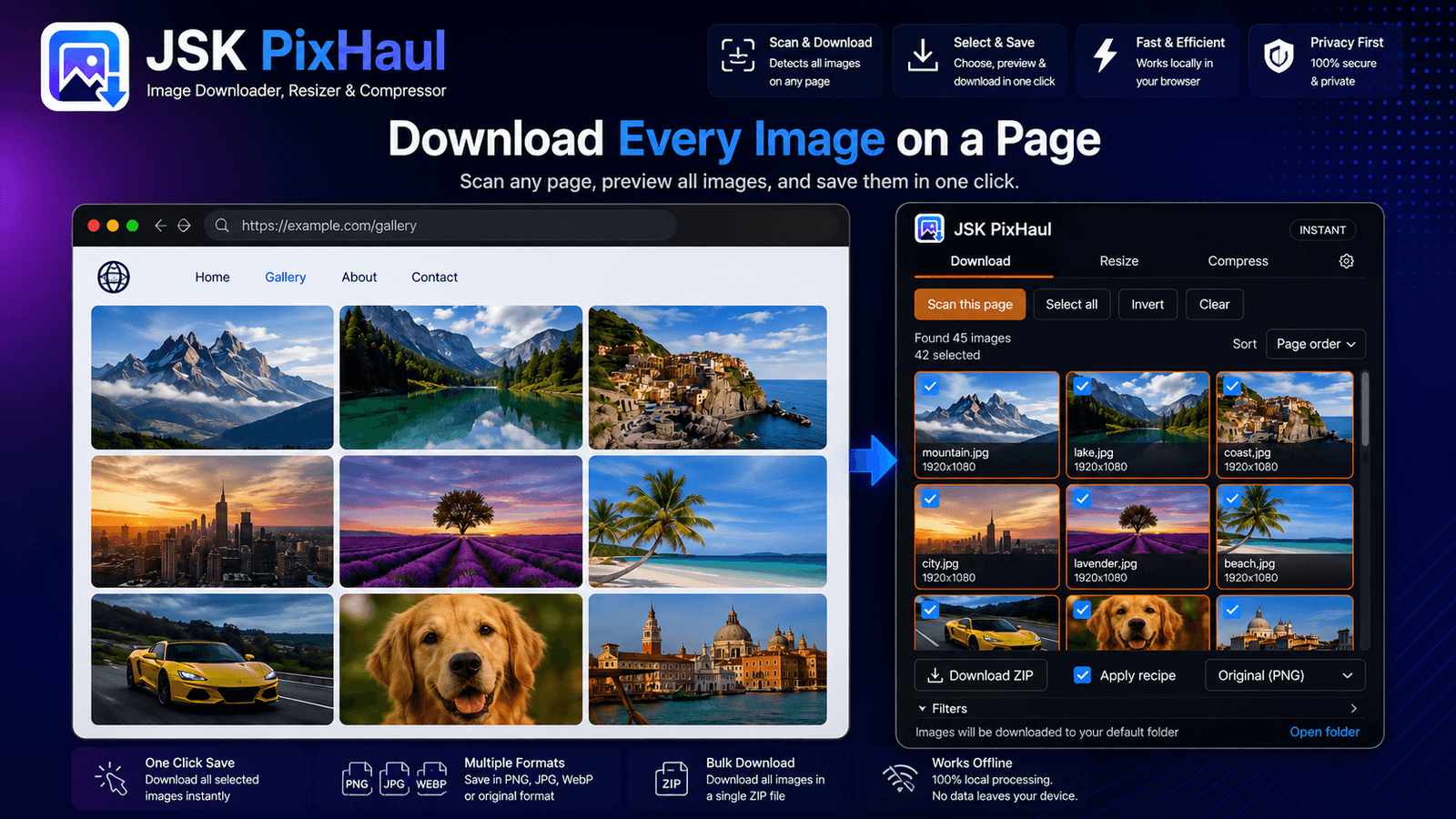
You found a page full of images you need — a lookbook, a gallery, a set of product shots, a mood board. And now comes the tedious part: right-click, Save image as, choose a folder, repeat. Forty times. By image ten you've lost track of which ones you've saved, and half of them landed in Downloads with names like hero_2x_final_v3.jpg.
There are manual workarounds, and they all have a catch:
- Right-click, save as — fine for one or two images, miserable for fifty, and it silently skips anything that isn't a plain
<img>(background images,srcsetsources, SVGs). - Browser dev tools — open the Network tab, filter by Img, and pick through requests. Powerful, but it shows you every tracking pixel and sprite too, and copying URLs out one by one isn't much faster.
- Full-page screenshot — captures the layout, not the original files, at whatever resolution the page happened to render.
This guide uses JSK PixHaul, a browser extension that scans the page, shows you everything it found, and lets you download in bulk — all locally, with nothing uploaded.
Step 1 — Open the side panel on the page
Install JSK PixHaul, open the page you want, and click the JSK PixHaul icon. The popup gives you a quick grab; click Open side panel for the full workspace with filters and renaming.
Step 2 — Scan the page
Click Scan this page. JSK PixHaul reads the page for images and lists them in a grid. It doesn't just look at <img> tags — it also finds:
- images in
srcsetand<picture>sources, - CSS
background-images, - inline SVGs,
- image links, and
- images inside frames on the page.
That's the difference between "the images I can right-click" and "the images that are actually on the page."
Step 3 — Filter down to what you want
A real page has junk: icons, avatars, tracking pixels, tiny UI sprites. JSK PixHaul's filters (available on every tier, no account needed) let you cut them before you download:
- Min / max width and height — hide anything smaller than, say, 500px.
- Type — keep only JPG, PNG, WebP, AVIF, GIF or SVG.
- Aspect ratio — square, landscape, portrait or wide.
- File size — set a KB range (this one needs site access for images hosted on other domains).
- URL contains / exclude — plain text or a
/regex/; excludeicon,thumb,spritein one field.
Click Measure sizes to read the real dimensions of every image (not just the ones the page had already loaded), then your size and aspect filters apply to all of them.
Step 4 — Select
Click thumbnails to select, Shift + click to select a range, or hit Select all. Invert flips your selection — handy when it's easier to deselect the few you don't want. Hover a tile and click the ⤢ button to see any image full-size before deciding.
Step 5 — Download, individually or as a ZIP
Two options:
- Download selected saves each image as a separate file. This is unlimited on every tier.
- Download ZIP bundles everything into one archive.
The ZIP size depends on your plan:
| Tier | How you get it | Images per ZIP |
|---|---|---|
| Instant | No account | up to 15 |
| Free | Free JSKAPPS account | up to 75 |
| Pro | Paid | unlimited |
Individual downloads stay unlimited at every tier — the cap is only on how many go into a single ZIP.
Step 6 — Rename automatically
Fifty files called image(1).jpg help no one. Open Rename on download and pick a pattern:
- Sequence →
01.jpg,02.jpg, … - Prefix + sequence →
product-01.jpg,product-02.jpg, … - Custom → build your own with tokens:
{name},{index},{ext},{date},{site},{alt}.
For example, {date}/{site}-{index} sorts a scrape into a dated folder named after the source site. A live preview shows the result before you commit.
A note on privacy
Everything above happens in your browser. JSK PixHaul processes images locally and doesn't upload them anywhere — the only network call it makes on its own behalf is a licensing check to JSKAPPS when you connect an account, and that carries your API key, never your images. If that matters for your work, it's worth knowing before you paste a URL into some upload-based tool.
When the images won't show up
Some pages load images lazily as you scroll, so a fresh scan finds only the first screen. On Pro, tick auto-scroll before scanning and JSK PixHaul scrolls the page to trigger the rest first. If you're grabbing across several open tabs, All tabs (also Pro) scans them all at once.
Where to go next
That's the whole loop: scan, filter, select, download, rename. For the full reference — every filter, every rename token, and how the tiers differ — see the JSK PixHaul documentation.
If the images you're after are product photos and you need the full-resolution originals rather than the page's thumbnails, read How resellers pull full-resolution product photos from AliExpress and Amazon next.
About this tool
JSK PixHaul — Image Downloader, Resizer & Compressor