 JSKAPPS
How to open 100 URLs at once in Chrome (without killing your browser)
Somnath Roy · July 30, 2026
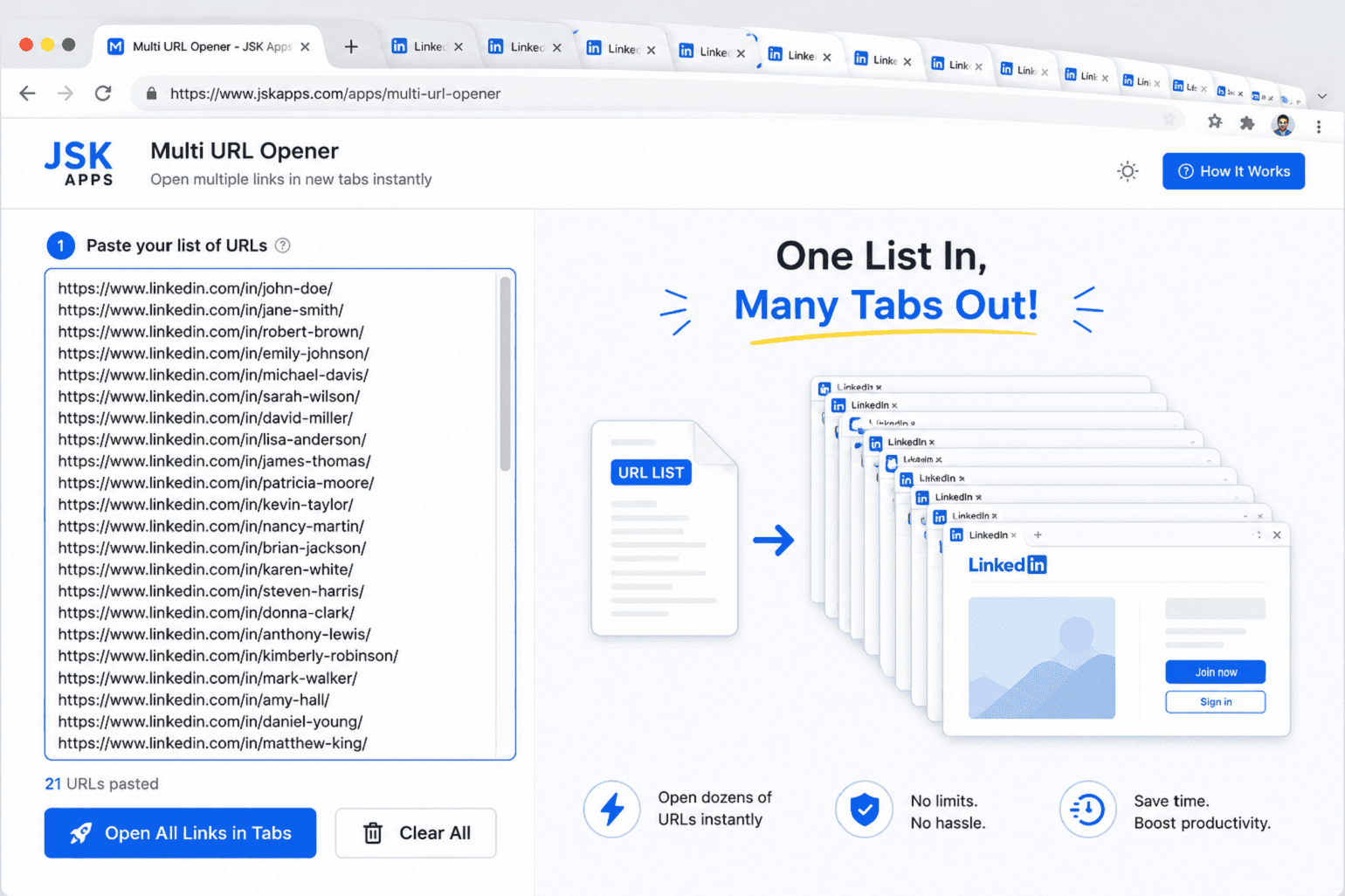
You have a list of links. Maybe it came out of a spreadsheet, a client report, a crawl export, or a colleague who pasted forty URLs into a chat message. Now you have to actually look at them.
So you start middle-clicking. Somewhere around the fifteenth link you lose your place, because the tab strip has collapsed into a row of unreadable favicons and you can no longer tell which ones you've already opened. Or you take the other route — select all the links, bookmark them to a folder, right-click, Open all — and your browser tries to load a hundred pages simultaneously, the fan spins up, and everything stops responding for a minute.
Both approaches fail for the same reason: a browser will happily accept more work than it can do at once. The fix isn't a faster machine, it's controlling how the tabs open.
Why 100 tabs at once is a bad idea
When Chrome opens a tab, it doesn't just create a strip entry. It spins up a renderer process, fetches the page, parses HTML and CSS, runs JavaScript, and loads images and fonts. Doing that a hundred times in the same second means a hundred network requests and a hundred parallel page loads competing for the same CPU and memory.
Two things follow, and both are avoidable:
- Your machine stalls. Memory use spikes and everything — including the tabs you already had open — becomes sluggish.
- The sites notice. A hundred requests arriving at once from one IP looks like scraping. Some hosts throttle you, some serve a challenge page, and some briefly block you. You end up with a screen full of error pages rather than the content you wanted.
The goal is not "open everything instantly". It's "get every page open and available, without a stampede."
The approach: paste the list, then control the opening
JSK Multi URL Opener is built around exactly that loop. Install it, click the toolbar icon and you get a text box.
Step 1 — paste your links, one per line.
example.com/report-q1
https://example.org/pricing
example.net/docs/getting-started
You don't need to tidy them first. Bare domains get https:// added automatically, blank lines are ignored, and a counter under the box tells you exactly what it found:
3 URLs · 1 skipped · 2 duplicates removed
That counter is worth reading before you click anything. "Skipped" means a line wasn't a usable link — a stray word, a heading you copied by accident, or a blocked scheme like javascript:. Duplicates are removed automatically, which matters more than people expect: exported lists are full of them.
Step 2 — choose how they open. The Mode dropdown is the only decision you make every time:
- New tabs — the default; every link in the current window.
- One window (all) — keeps the batch out of your working window.
- Group by domain — tabs bundled into a Chrome tab group per site, which is the one to use when your list spans several domains.
- One by one — reuses a single tab, walking through the list with a pause between each. Good for reviewing pages in sequence rather than parking them.
Step 3 — click Open. A progress bar appears, and you can stop, pause or resume at any point. If you paste a big list, you'll be asked to confirm before anything opens.
Everything up to here works with no account and no sign-in, and none of your links leave your browser.
The two settings that make 100 links viable
Open the Advanced drawer under the Open button. Two options do almost all the work.
Lazy-load. This is the important one. With it on, all your tabs appear immediately — titles, favicons, positions — but each page only actually loads when you click it. A hundred tabs cost you almost nothing until you start reading them. For any list over about twenty links, turn this on first.
Delay. Milliseconds to wait between opening each tab. Set it to 500 and your hundred tabs open over fifty seconds instead of all at once. This is the setting that stops sites throttling you.
Two more worth knowing:
- Open first N — caps the batch without editing your list. Useful for testing a big list with three links before committing to all 200.
- New window per batch of N — splits a long list into separate windows of, say, 20, so each window stays readable.
A single batch is capped at 10,000 links as a safety guard, so a runaway paste can't lock up your browser.
Getting the list in when it isn't already a list
Often the links aren't in a neat column. The Add menu handles the common cases:
- From tabs — pulls in the URLs of everything you already have open. Handy for saving a research session before you close it.
- From page — grabs every link on the page you're looking at.
- Extract from text — paste a paragraph, an email, or a chunk of a report, and it keeps only the URLs.
- Import file — a
.txt, or a.csvexported from a spreadsheet. The most link-like column is detected automatically and the header row is ignored, so a normal export just works.
You can also drag a file straight onto the box.
Going the other way, the Export menu will copy the cleaned list to your clipboard, save it as .txt or JSON, or push it into a bookmarks folder.
Watch for the suggestion
As you paste, a small chip sometimes appears under the counter. It only shows up when it has something useful to offer — a pattern it can expand into many URLs, lines that aren't links, or tracking parameters it can strip. One at a time, and you can dismiss it.
That last one is quietly useful: marketing exports are usually stuffed with utm_source, utm_medium and gclid parameters. Stripping them gives you cleaner URLs and collapses links that were only ever different by their tracking tags. (Tracking cleanup needs a free account.)
Reusing the list tomorrow
If it's a list you'll come back to — a weekly report set, a client's page inventory — open the side panel and save it with a name and a few tags. You can save 3 lists without any account, 25 with a free one, and unlimited on Pro.
Where to go next
That's the whole core loop: paste, pick a mode, open — with lazy-load and a delay doing the heavy lifting once your lists get long.
Two things worth reading next, depending on where your links come from:
- If you find yourself typing out sequences by hand —
/page/1,/page/2,/page/3— you can generate them from a single line instead. See URL templating: generating hundreds of links from one pattern. - For the full reference — every mode, every setting and its default — see the documentation.
About this tool
JSK Multi URL Opener