 JSKAPPS
Step-by-step guide
How to Boost Volume in Chrome Beyond 100% — Without Wrecking the Sound
Tanmoy Sambhav · August 20, 2026
You have dragged the system volume to the top. You have clicked the little speaker in
the video player and dragged that to the top too. The lecture recording is still too
quiet to follow, and you are leaning towards the laptop with one hand cupped behind your
ear.
This is not a fault in your machine. It is a ceiling, and there is a legitimate way
through it.
Why 100% is not as loud as you think
Your operating system volume and a page's own player are both attenuators. They can
take the original recording and make it quieter — that is all. At 100% you are hearing
the file exactly as it was recorded, and if it was recorded quietly, 100% is quiet.
A conference talk captured on a laptop microphone across a room might sit 20 dB below a
commercially mastered track. No amount of dragging sliders that only reduce volume will
recover it.
To go past that ceiling you need something that amplifies — that multiplies the
signal rather than dividing it. Browsers can do this: the Web Audio API, built into every
modern browser, lets an extension route a tab's audio through a gain stage before it
reaches your speakers. That is what every "volume booster" extension is doing.
The part most boosters get wrong
Amplification is trivially easy. Amplification that still sounds good is not.
Audio has a hard ceiling of its own. Push a waveform past it and the peaks are chopped
flat — clipping — which you hear as crackle, buzz and a gritty edge on loud sounds.
Turn a quiet recording up 3× and you have not made it three times clearer; you have made
the quiet parts audible and the loud parts broken.
The fix is a limiter: a fast automatic gain reducer sitting after the boost, catching
peaks before they hit the ceiling and easing them down rather than letting them chop. You
get the loudness without the crackle. The trade-off is honest and worth knowing: at
extreme settings the material sounds compressed — the difference between loud and quiet
narrows — because the limiter is choosing that over distortion.
When we unpacked the 21 most-installed audio extensions in this category before building
our own, the pattern was consistent. Most implement the gain and stop there. The single
most-installed one — around two million users — contains no equalizer whatsoever, just a
gain node, despite what its listing implies. If a booster crackles when you push it,
this is why.
Boosting a tab, step by step
Using JSK SoundShape:
- Play the audio first. An extension can only attach to a tab that is producing
sound. If nothing is playing, there is nothing to boost. - Click the toolbar icon on that tab. Chrome only permits an extension to read a
tab's audio immediately after you invoke it there — a deliberate browser rule, and no
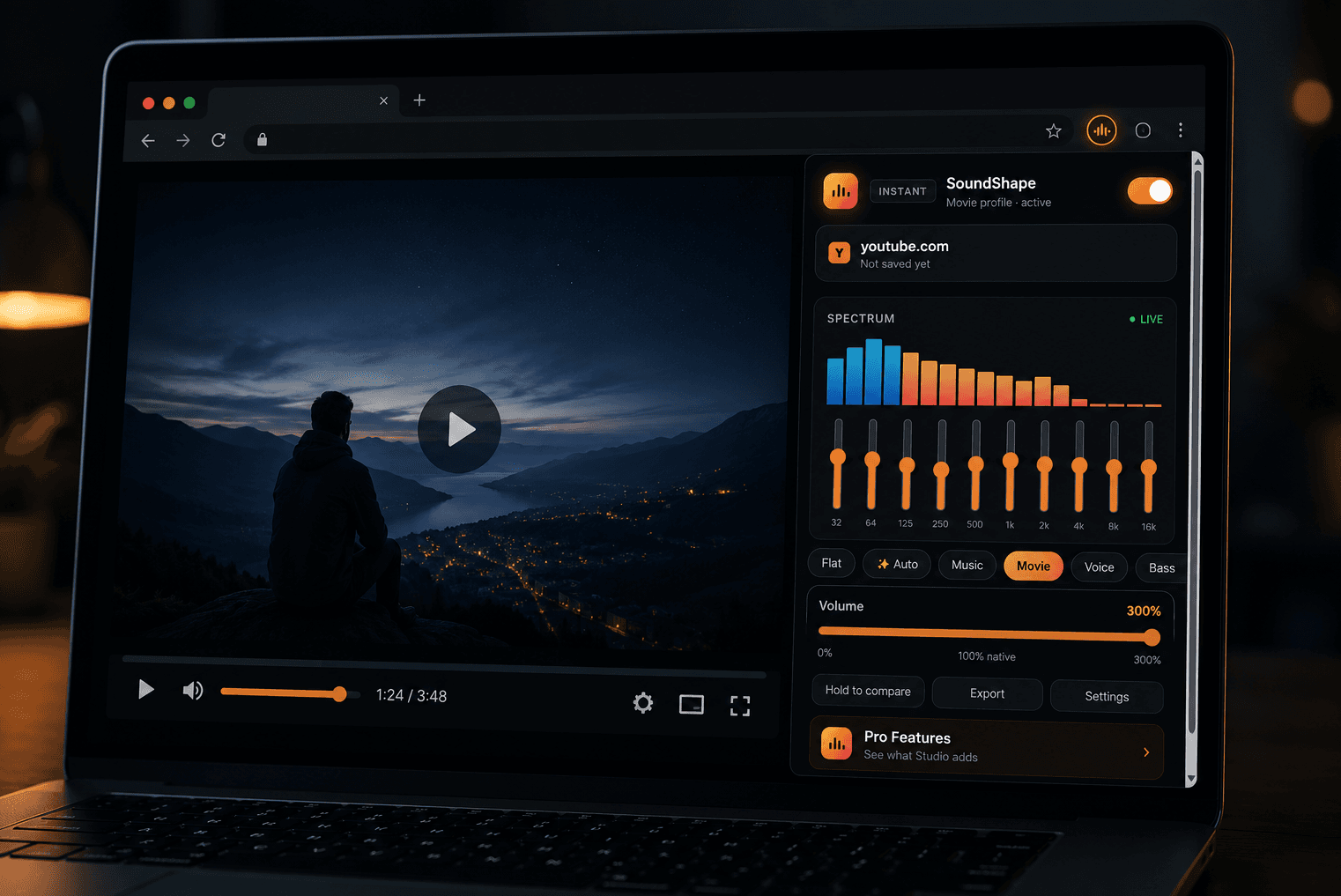
permission lifts it. This is also why a booster cannot silently listen to your tabs. - Raise the Volume slider past 100%. The range runs to 300%. The limiter is already
in the chain; you do not switch it on. - Stop when it stops improving. More gain past the point where the limiter is
working hard buys loudness at the cost of life in the recording.
Everything above is free and needs no account. SoundShape's free tier is not a trial —
the equalizer, the booster and per-site memory are all in it permanently.
Two things that work better than pure volume
Raw gain is a blunt instrument. Two adjustments often solve "too quiet" better:
Lift the speech range instead. Human speech intelligibility lives roughly between
1 kHz and 4 kHz. On a recording where you can hear that someone is talking but cannot
make out words, +3 to +5 dB across those bands does far more than another 50% of volume.
The Voice preset does this in one click.
Level it instead of boosting it. If the problem is that a recording swings — a
speaker who drifts off-mic, or a film where the score is deafening and the dialogue is a
whisper — no fixed volume setting is right for both. What you want is loudness levelling,
which continuously raises the quiet parts and eases the loud ones. That is a Pro feature
in SoundShape, and it is explained properly in
Loudness Levelling: Why Dialogue Is Quiet and Ads Are Loud.
Before you install any volume booster: four checks
This is a category with a genuine trust problem, and enough people know it that
"volume booster chrome extension malware" is a real search query. You do not have to
take anyone's word for it — including ours. Four checks you can do yourself in two
minutes:
1. Read the permission prompt at install. Ask what it wants and why. A tab audio
booster needs tabCapture (to read the tab's sound) and storage (to remember your
settings). If it asks to "read and change all your data on all websites", it is
requesting the ability to see and modify every page you visit — including your bank and
your email. Very few audio extensions need that.
2. Check whether it works offline. Disconnect from the internet and use it. Audio
processing happens on your machine; there is no reason for a booster to need a network
connection to make a tab louder. If it stops working offline, ask what it was talking to.
3. Look at the reviews that mention what changed. Extensions get sold. A tool with
years of positive reviews and a recent cluster of "this changed after an update"
complaints is worth a second look — a change of ownership is one of the most common
routes to a previously clean extension becoming an ad injector.
4. Test whether the controls do anything. Set every band to maximum, then to minimum.
If the sound does not change, the interface is decorative. This sounds absurd; it is more
common than it should be, and it is why we made an unprocessable tab say so out loud.
For the record, on Chrome and Edge, SoundShape requests tabCapture, offscreen,
storage, activeTab and sidePanel, and no host permissions at all — it cannot
read the pages you visit. Its free tier makes zero network requests of any kind, which
you can verify with the checks above. The full permission list and the reason for each is
in the documentation.
When boosting genuinely cannot work
Some tabs cannot be processed by any extension, and it is worth knowing which before you
conclude a tool is broken:
- DRM-protected audio. Sites that encrypt their audio streams are unreachable by
design. No browser extension can boost or equalise them — and one that appears to is
showing you a control that does nothing. - Browser-internal pages.
chrome://pages and the extension stores are off-limits
to all extensions. - A tab already captured by something else. Only one extension may capture a given tab.
A running screen share counts.
A booster worth using tells you which of these you have hit. Most simply go quiet, which
is why "why isn't my volume booster working" is the other query people end up typing.
The short version
Going past 100% is legitimate, and it is just amplification the page's own slider cannot
do. What separates a good implementation from a bad one is what happens at the peaks — a
limiter instead of clipping — and whether the tool is honest when it cannot help. Before
you reach for more gain, try lifting 1–4 kHz for speech, or levelling for material that
swings.
And whatever you install, spend the two minutes on the four checks. It is a category
worth being careful in.
JSK SoundShape is a per-tab equalizer and
volume booster for Chrome, Edge and Firefox. The 10-band EQ, the 300% boost and per-site
profiles are free with no account. See the
documentation for the full feature and
permission list.
About this tool
JSK SoundShape